
Estimated Market Value
Confidence range: $907,400 – $1,044,000
Base Market Value
$1,119,900
2,083 sqft · $522/sqft · 3% trend
Comp Value
$876,400
Weighted by distance, recency, similarity
Adjustments
$70,200
Condition + feature
Condition Adjustment
$70,200
Kitchen 0 · Bathrooms 0.1
Feature Adjustment
$0
Garage · Pool · Roof · HVAC
Quick Add Comps
4 Comparable Sales(2 Excluded)
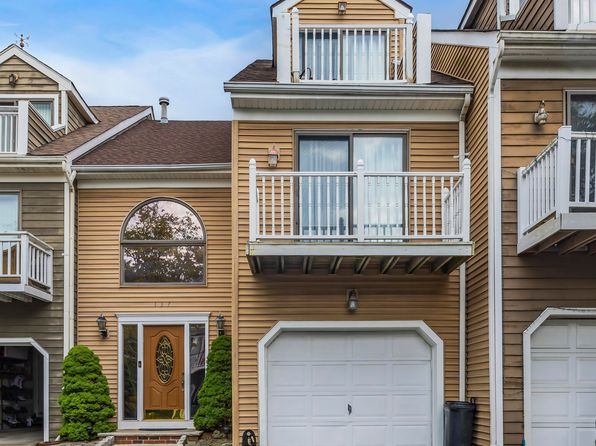
137 Marina Bay Court, Highlands, NJ 07732
Sq Ft
1,896
Year Built
—
Parking
-
Pool
No
Location
—
Heating
—
Cooling
—
Kitchen
Average
Curb Appeal
Average
Bath 1
Average
Bath 2
Average
Bath 3
Average
Bath 4
Average
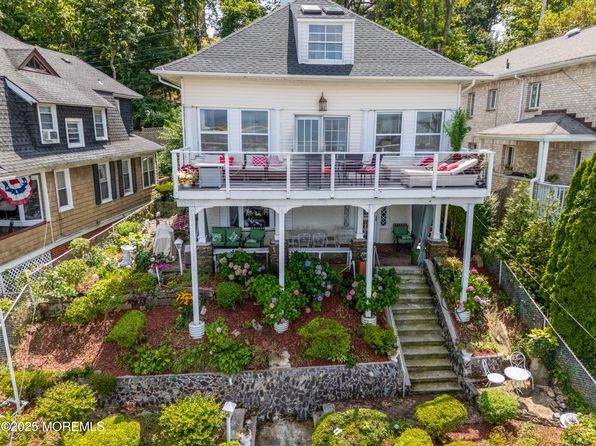
75 Highland Avenue, Highlands, NJ 07732
Sq Ft
2,420
Year Built
—
Parking
-
Pool
No
Location
—
Heating
—
Cooling
—
Kitchen
Fair
Curb Appeal
Good
Bath 1
Average
Bath 2
Average
Bath 3
Average
Bath 4
Average
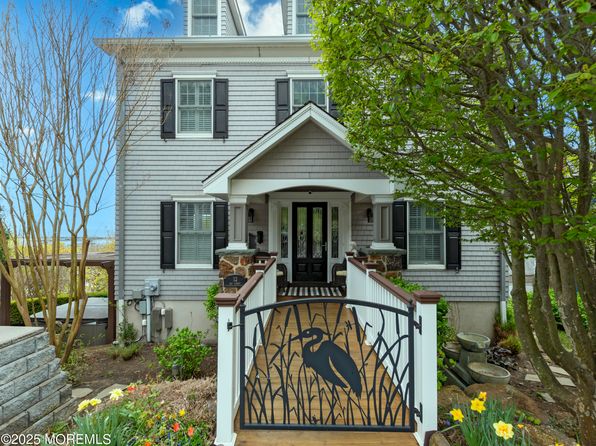
12 Bay Street, Highlands, NJ 07732
Sq Ft
2,200
Year Built
—
Parking
-
Pool
No
Location
—
Heating
—
Cooling
—
Kitchen
Average
Curb Appeal
Average
Bath 1
Average
Bath 2
Average
Bath 3
Average
Bath 4
Average
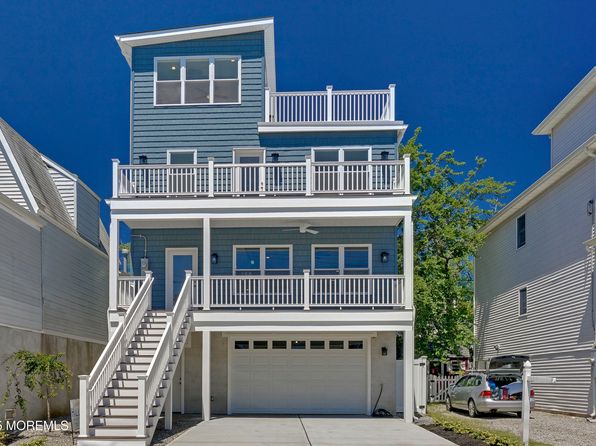
14 Barberie Avenue, Highlands, NJ 07732
Sq Ft
2,176
Year Built
—
Parking
-
Pool
No
Location
—
Heating
—
Cooling
—
Kitchen
Average
Curb Appeal
Average
Bath 1
Average
Bath 2
Average
Bath 3
Average
Bath 4
Average
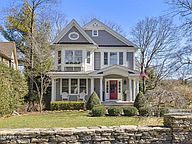
135 Harrison Avenue, Fair Haven, NJ 07704
Sq Ft
2,314
Year Built
2013
Parking
2 Garage
Pool
No
Location
—
Heating
—
Cooling
—
Kitchen
Average
Curb Appeal
Average
Bath 1
Average
Bath 2
Average
Bath 3
Average
Bath 4
Average
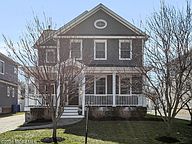
86 Washington Street, Rumson, NJ 07760
Sq Ft
—
Year Built
2018
Parking
Street
Pool
No
Location
—
Heating
—
Cooling
—
Kitchen
Average
Curb Appeal
Average
Bath 1
Average
Bath 2
Average
Bath 3
Average
Bath 4
Average